Monday, May 16, 2011

Beware Of Free Antispyware Download


Though internet is a revolution in the present world, it has its own disadvantages. The security and privacy are at stake. The Internet is a dangerous place full of privacy invaders, scammers, and hackers availaing full advantage of your internet activities. You need to take certain preventive measures to avoid these threats. Spyware may get installed via certain shareware programs offered for download. Downloading programs only from reputable sources can provide some protection from this source of attack.

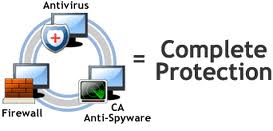
There are are plenty of things you can do to keep yourself safe. Antispyware, antivirus, firewalls or internet security suites are some of the software applications that can ensure your privacy. There are a number of good antispyware programs in the market today. At the same time, dozens of fake and rogue antispyware softwares are also prevailing in the market. They leave the traces of spyware and adware on your PC when scanned, thus creating a fear of threat and making yourself to buy that antispyware software. These rogue antispyware softwares are heavily marketed through e-mail campaigns and sometimes through some words like FREE ANTISPYWARE DOWNLOAD. Beware of them. Never run any free scan or free antispyware download unless you are aware of the software publishers.

If you find time, just go through the independent product reviews that are published by renowned computer magazines like PCWorld, PCMag, CNET. Spending some extra time on researching antispyware softwares can save you a lot of hassles in the long run. There are certainly some companies that specialize in delivering just good antispyware software programs and nothing else.

As a customer, everyone of us would be interested in evaluating the antispyware program. The four basic parameters which we look at the best antispyware software are price, features, ease of use, and performance. A growing number of antispyware tools are taking a new approach to fight the spyware. Rather than blocking each spyware and adware, they aim to limit malware's power to cause harm even if it gets in.

Research analysts test the products' ability to provide real-time defense on contact with threats, as well as their propensity to falsely identify harmless files. A real-time protection against rootkits and phishing sites is also one of the feature to test the accuracy of the antispyware software. Other user-friendly features like the ability to choose between a fast system scan and a slow system scan is a notable thing if you are run out of time.

Anti-phishing protection guards prevents access to known bad sites. Detecting malware is one thing; cleaning it thoroughly from your system is another. Some antispyware softwares claim that they have detected even the unnoticeable spyware and adware. But in reality one needs to have a thorough cleaning antispyware software application.

Source: http://goo.gl/Vl7oK

Monday, May 9, 2011

Spyware threats and removal instructions


We are here to help you remove spyware, adware and other malicious software from your computer. We are proud to present decent information on the latest security threats and cyber safety related issues.

It contains a database of the latest computer security threats: adware, backdoors, browser helper objects, browser hijackers, keyloggers, remote administration tools, rogue antispyware, malicious domains, tracking cookies, trojans and worms. We provide simple and comprehensive instructions on how to remove these threats manually or what software to use.

The latest top rogue antispyware infections currently are: SecurityTool, XP Antispyware 2010, Vista Guardian, Internet Security 2010, Personal Security, XP Guardian, System Security, Vista Antivirus Pro 2010.
source:- http://bit.ly/6aa1n

Thursday, May 5, 2011

AVG Antivirus Installation Guide

You may face several technical issues when any malicious program gets entry in your system. Some of the technical issues are applications taking more than usual time in responding, some of the programs are not working properly, etc. If you want to save your system from any error, then you should install an updated antivirus on your system. A range of antivirus programs is available in the market like, AVG, Norton, etc. In this article, light will be shed on AVG antivirus installation.

Features

AVG antivirus is integrated with many new and enhanced features. It consists of LinkScanner active surf-shield, which makes sure that the page you are going to visit is safe. This antivirus contains search-shield in order to apply safety ratings to the search result of Google, MSN, and Yahoo.

AVG antivirus protects you from phishing attack, in order to secure your confidential information. It offers you the facility to download and exchange files without any risk of virus infection. This antivirus contains an e-mail scanner, which keeps you safe from dangerous attachments and links in your e-mail. AVG antivirus makes sure that most complicated threats remains away from your PC.

Usability
AVG antivirus has the facility to update itself in order to protect you against latest threats. Follow these steps to download and install AVG antivirus 9.0 on your system:

STEP 1: You can download AVG antivirus from its official website by clicking on the "Download AVG now" button.
STEP 2: Click on "Save" button, when you are prompted, and select location where installation file should be stored.
STEP 3: Reboot your computer.
STEP 4: Close all running applications, and locate the downloaded AVG installation file. Then double click on its installation file in order to launch.
STEP 5: Choose your setup language and click on "Next".
STEP 6: Check the "I have read the license agreement" checkbox and click on the Accept button.
STEP 7: In this step, the AVG installation wizard will check for any incompatible software on your computer. If any incompatible application is found, the AVG installation wizard will inform you about it.
STEP 8: Click on the "Uninstall Software button" to open the Windows Add or Remove programs dialog, and then remove that application from your system.
STEP 9: Click on "Custom Installation", on the Select Installation Type page.
STEP 10: Click on "Add or remove components" option, and click on Next.
STEP 11: Enter your "AVG license number", click on the Next button.
STEP 12: Select those components, which you want to install, and click the "Next" button to proceed with the installation.
STEP 13: Click on "Next", select schedule for scanning and updating the software, and click on "Next".
STEP 14: Click on "Next", "Next", and "Finish".

After installation of AVG antivirus 9.0 on your system, you can protect it from malicious programs.

Limitations

After installation of AVG antivirus on your system, you might face issues while uninstallation of this software. This program can corrupt iTunes installation after removing its DLL files.

Recommendation

It is suggested that you should install a genuine copy of AVG antivirus 9.0 on your system in order to protect it from malicious programs.

Source : http://goo.gl/D8f3T

Tuesday, March 29, 2011

How to Install Yahoo Anti-Spyware?


Yahoo! Anti-Spyware is software downloadable as a bundle with the Yahoo! Toolbar, developed and distributed by Yahoo! Inc. Available only to Firefox users, Anti-Spyware is a new addition to the toolbar, allowing you to more safely enjoy the Internet.

# Step 1: Turn on your computer. Open Firefox and download the Yahoo! Toolbar.

# Step 2: A prompt will appear below your address bar asking if you want to install the software. Press "Allow" on the far right of the prompt.

# Step 3: A new window will appear, prompting you to install only the add-ons you trust. Press the "Install Now" button to confirm.

# Step 4: The download will initiate. When the download is complete, you will be asked to restart Firefox for the changes to take effect. Accept by pressing the "Restart Firefox" button.

# Step 5: When Firefox initiates, you now should see the newly installed Yahoo! toolbar. If not, click on the "View" menu in the browser, and hover above "Toolbars." Click on the "Yahoo! Toolbar" button to reveal it.

Friday, March 25, 2011

How to Install Spyware Doctor?


PC Tools Spyware Doctor is a program that protects your computer from spyware, the malicious computer software that can steal your data and personal information. Spyware Doctor scans your computer for and removes spyware. Spyware Doctor stays resident in your computer's memory to block spyware infections before they can happen. PC Tools hosts a free version of Spyware Doctor that you can download and install if you would like to try the program.

# Step 1: Open a Web browser and browse to the PC Tools Spyware Doctor website using the link in the Resources section of this article.

# Step 2: Click the green "Start Download Now" button. A download window appears. Select your desktop using the navigation window and click the "Save" button.

# Step 3: Double-click the file "sdsetup.exe" on your desktop when Spyware Doctor has finished downloading. The Spyware Doctor installation utility appears and begins downloading the latest spyware definitions from the Internet. When the progress bar is full, this process is complete. Click "Next."

# Step 4: Read the terms outlined in the Spyware Doctor license agreement. If you agree to the terms, select "I accept the agreement" and click "Next" twice.

# Step 5: Confirm that the "Automatically Install Updates" check box is selected so that Spyware Doctor automatically downloads new spyware definitions when they become available. Click "Install." At this point, Spyware Doctor may download additional updates. When the process is complete, the program loads automatically.

# Step 6: Click "Finish" to return to your desktop. Once installation is complete, you may delete the file "sdsetup.exe" from the desktop.

Thursday, March 24, 2011

How to Install a Spyware Sweeper?


No matter what type of computer you use or what you use it for, proper spyware and virus protection is essential. Many websites contain malicious code that can infect your computer, log your keystrokes and steal your personal information. A good spyware sweeper program is a key component in protecting against malicious programs.

# Step 1: Check the computer for any spyware sweepers that are installed. Look for products by computer protection makers such as Norton, Symantec and Computer Associates. Open any programs that are found and inspect them for existing spyware protection. Keep in mind that it is possible, and even helpful, to have more than one spyware protection program installed on the same computer.

# Step 2: Log on to the Internet and search for "free anti-spyware packages." A number of free or low-cost programs are available. AdAware, Spybot Search & Destroy and AVG are among the best-known programs and most widely used. Check each program's details and select the one most appropriate for your computer usage.

# Step 3: Go to the downloads section of the manufacturer's website and download the appropriate installation program. Make sure to download the program designed for the computer's operating system.

# Step 4: Choose a location for the downloaded file. For many computers the default download path will be "My Documents" or "My Downloads." After the program finishes downloading, double-click on it to start the installation.

# Step 5: Confirm the installation path for the downloaded file. Most of the time you should choose the default directory. An exception would be if the computer has two hard drives and you prefer to keep programs on the "D" drive.

# Step 6: Enter registration information if requested. Some spyware sweeper programs require computer users to register the software, even if the software is free.
# Step 7: Wait for the installation to finish, then open the spyware sweeper program and look for the update option. Choose and click "Update" to have the program download and install any updates released since the installation package was produced.

Tuesday, March 22, 2011

How to Install Stopzilla Anti-Spyware


If your computer is running more slowly than normal or you have pop-up ads appearing anytime you connect to the Internet, you may have malicious spyware programs that have been covertly installed on your computer without your knowledge. To get rid of unwanted spyware, you will need to install and run a program such as StopZilla, which can be easily

Step 1: Turn on your computer and open your web browser either by double-clicking on its desktop icon or by clicking on the web browser's name in the "Programs" section of your computer's "Start" menu.

Step 2: Navigate your web browser to the official StopZilla website (see Resources below). Click on the "Product" link at the top of the page and wait for a drop down menu to appear. Scroll down and click on the link that says "STOPZilla."

Step 3: Wait for the next page to load in your web browser and then click on the green button at the center of the screen that says "Click here to download STOPZilla now!"

Step 4: Click the "Save File" button when your web browser prompts you to decide if you want to download the program. Navigate to the folder on your hard drive where your downloaded files are saved. Double-click on the file named "STOPZilla_Setup." Click the "Continue" button if your operating system asks if you want to run the software.
Step 5: Click the "Next" button when the StopZilla installation screen appears. Read the terms of service. Click the radio button that says "I Agree to the Terms." Click "Next" again. Decide if you want to also install the StopZilla web browser toolbar. Click the check mark if you don't want the toolbar to be installed also. Click "Next" a final time to finish the installation.